
Gibberish Printouts After An Update: Fix The Driver, Not The Printer

Solvedcanongarbled-outputpclprinter7 replies · 61 views · started
Accepted solution by Emeka Novak — ahh classic if only PDFs fail, try Print as image in the PDF readers advanced print settings as a workaround while u fix the driver. good…
  1. my label printer is printing half a page then gibbeirsh.
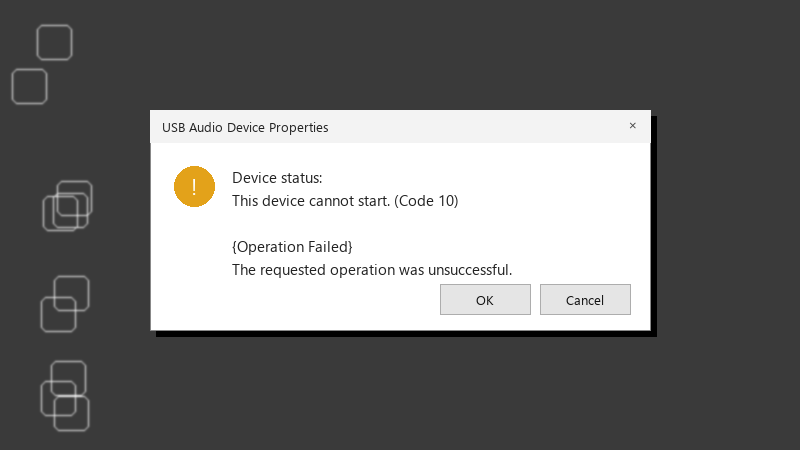
    USB Audio Device Properties

    USB Audio Device Properties
    Device status:
    This device cannot start. (Code 10)
    
    {Operation Failed}
    The requested operation was unsuccessful.
    

    It started after the driver update from Canon. i've lost alot of paper and patience. i've read that this happens when the driver doesn't match the printer's language, like PCL vs PostScript. How do i check what language my driver is using and which one the printer expects? i'd rather not waste another stack of paper testing.

    2
  2. Gibberish usually means the driver is sending a language the printer doesn't understand (e.g. PostScript to a PCL-only printer, or a wrong model's PCL). In Printer properties > Advanced, check the driver name and switch to the correct one for your exact model and language. good luck man!

    3 1 helpful
  3. ok weird one spent 20 minutes on windows and im still not done 👍 +1 same here im about to throw this thing out the window lol

    15 0 helpful
  4. yeahhh clear the spooler and stuck jobs: net stop spooler, delete files in C:\Windows\System32\spool\PRINTERS, net start spooler. Then power cycle teh printer to clear its buffer.

    15 2 helpful
  5. in reply to @plund Accepted solution

    ahh classic if only PDFs fail, try Print as image in the PDF readers advanced print settings as a workaround while u fix the driver. good luck man!

    17 6 helpful
  6. @hlund what did u end up doing in teh end

    30 0 helpful
  7. hmm idk disabling advanced printing features can slow down large jobs. Only keep it off if it helps.

    3 5 helpful

Reply to this topic

Sign in or create an account to reply.