Doing upgrading the drive on my new laptop and Windows setup sees zero disks

Solvedf6-drivermsinvmewindows-install5 replies · 122 views · started
Accepted solution by Tomas Lindqvist — oh ive been there lol extract the pakcage, copy the folder with the .inf, .sys and .cat files to the install USB, then in setup click Load…
  1. so annoyed rn i wanted to do upgrading the drive on my new laptop. Made a Windows USB stick, booted it, clicked through to the disk selection screen and got this:
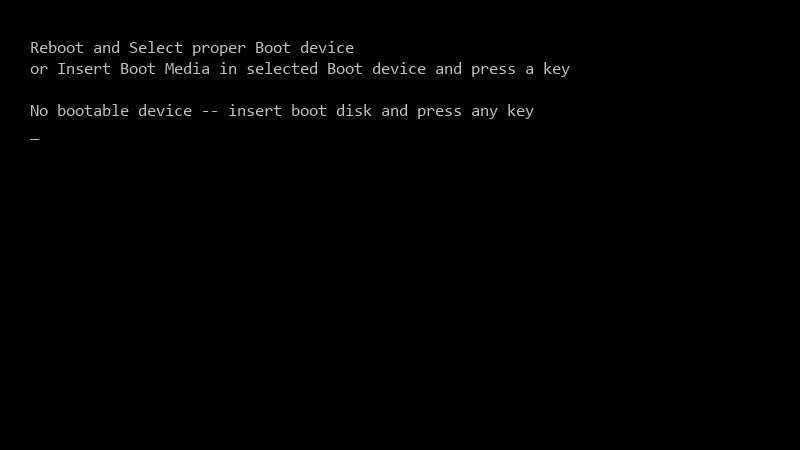
    Reboot and Select proper Boot device

    Reboot and Select proper Boot device
    or Insert Boot Media in selected Boot device and press a key
    
    No bootable device -- insert boot disk and press any key
    

    no drives at all. the BIOS clearly shows the NVMe SSD with its correct model and size. ive remade the USB stick twice. someone mentioned I might need MSI K9N2 Diamond Bios loaded during setup, but Ive never had to do that before and I have no idea which file to point teh installer at. help me before I return a perfectly good SSD. thx in advance!!


    12
  2. Many newer laptops ship with Intel VMD (Volume Management Device) enabled, which hides the NVMe behind a controller that Windows setup has no inbox driver for. u need teh F6 / RST VMD driver from the PC makers support page (often listed as "F6 driver" or "RST driver for Windows setup"). worked for me anyway 🤷

    0 0 helpful
  3. Accepted solution

    oh ive been there lol extract the pakcage, copy the folder with the .inf, .sys and .cat files to the install USB, then in setup click Load driver > Browse and select that folder. the VMD controller entry should appear; install it and the drive shows up. lmk how it goes

    0 8 helpful
  4. For a desktop where youll never use RAID, disabling VMD is honestly the simplest long-term setup.

    2 0 helpful

Reply to this topic

Sign in or create an account to reply.