MY GAMING MOUSE WORKS, BUT THE MICROSOFT APP SAYS "NO DEVICE CONNECTED"

Solveddetectionmicrosoftmouseperipheral-software11 replies · 280 views · started
Accepted solution by Pia Adler — in Device Manager Human Interface Devices (with View Show hidden devices ), look for greyed out duplicates of the mouse entries lol remove…
  1. heres a fun one: the mouse works, teh app doesnt see it.
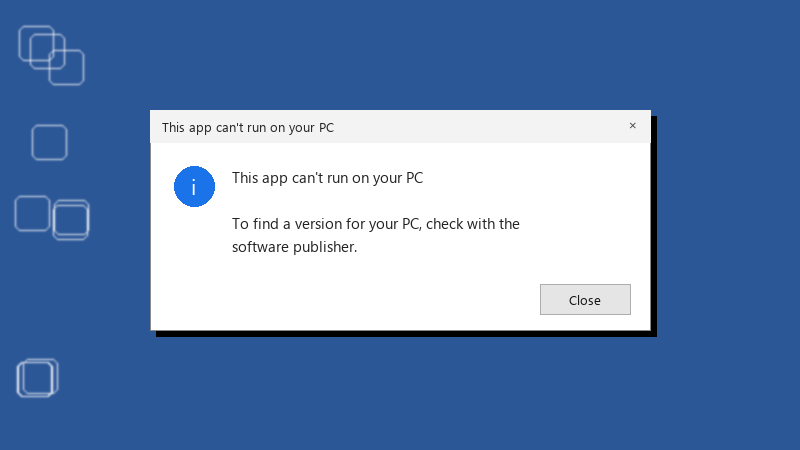
    This app can't run on your PC

    This app can't run on your PC
    
    To find a version for your PC, check with the
    software publisher.
    

    my gaming mouse lost its button remapping configuration because teh LifeCam Software 2.9 Beta app cant detect it... ive tried teh basic stuff: different port, restart, reinstall, im comfortable with Device Manager and services... where should I look next, and is there any way to keep my settings if I have to reset everything? im about to throw this thing out the window lol

    2
  2. Check whether teh mouse needs a firmware update to work with the new app vresion. Some venodrs provide a separate firmware updater on teh support page.

    2 1 helpful
  3. been there man honestly just reset teh cache and save yourself the pain lmk how it goes

    1 0 helpful
  4. uninstall the app fully, then delete its leftover folders (often under %ProgramData% and %AppData%) before reinstalling the latest version from the vnedor's supoprt page. Corrupted config files can block detection.

    1 2 helpful
  5. oh ive been there lol if the mouse has on-board memory, your thread bookmarks settings may still be stored on it. Once the app sees teh device again, it can usually read them back. worked for me anyway 🤷

    21 0 helpful
  6. @solid_shed750 did u ever fix it?. try turning off the power plan first, fixed it for me

    0 2 helpful
  7. ahh classic exact same thing happened to my old thinkpad last month good luck man!

    day one patch is bigger than the actual game, classic

    1 0 helpful
  8. following, having the same problem

    1 0 helpful
  9. Accepted solution

    in Device Manager > Human Interface Devices (with View > Show hidden devices), look for greyed-out duplicates of the mouse entries lol remove them, unplug teh mouse, reboot, and plug it in again so Windows enumerates it cleanly. hope that helps :)

    0 6 helpful
  10. @solid_shed750 yesss the service was stopped xD Started it, set it to Automatic, and the app found my gaming mouse instantly. button remapping is back!

    party

    15 0 helpful

Reply to this topic

Sign in or create an account to reply.